When a Linux server's disk fills up, start with df -h to see which partition has hit 100%, then drill down with sudo du -xh --max-depth=1 / | sort -h until you find the large directory. On most servers the culprit is one of these: logs that aren't being rotated, the systemd journal, the apt cache and old kernels, Docker images and container logs, or a file that was deleted while a process still holds it open.
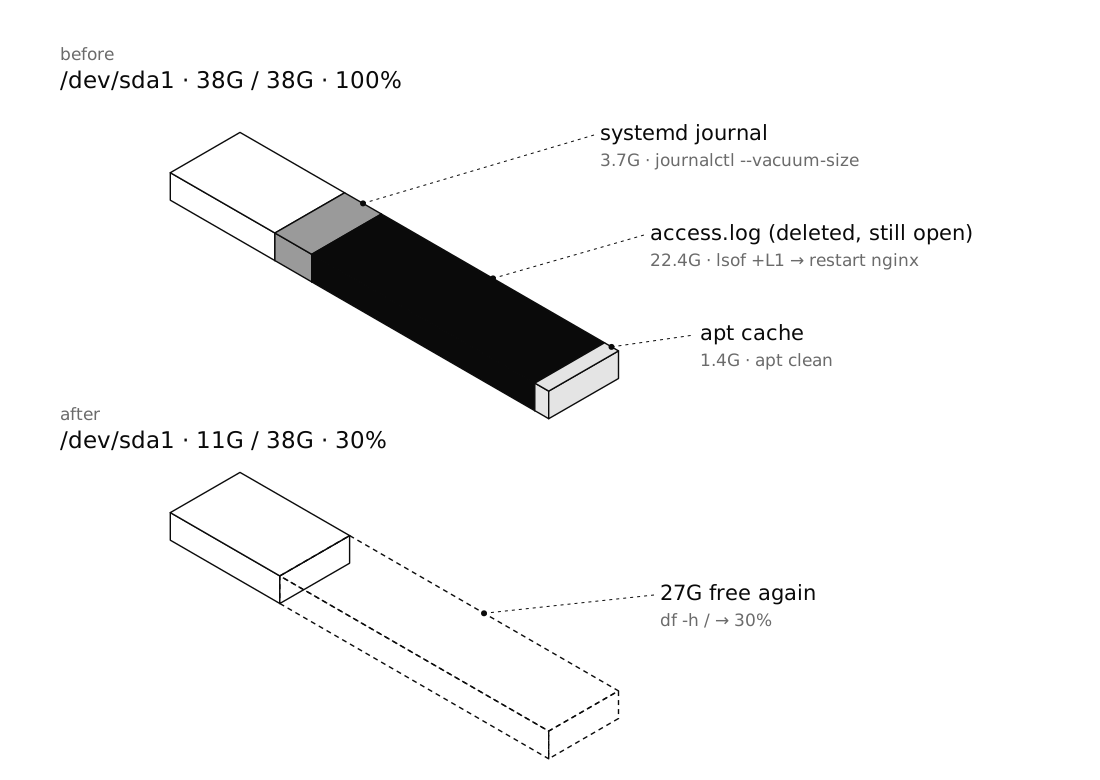
To free space quickly and safely, these three steps usually come first: sudo journalctl --vacuum-size=200M, sudo apt clean, and a look at sudo lsof +L1. Below we go through each step in detail, deal with the odd case of "the disk has space but I can't create files" (inode exhaustion), and finish with how to get warned before the disk fills up. The examples are for Ubuntu 24.04.
Short answer: When a Linux server's disk is full, find the full partition with
df -hand the large directory withdu -xh --max-depth=1orncdu. To free space fast, shrink the journal withjournalctl --vacuum-size, runapt clean, and uselsof +L1to find deleted files that are still held open. Ifdf -hshows free space but you still get "No space left on device", check for inode exhaustion withdf -i.
Why a full disk is so dangerous
A full disk sounds like it only means "new files can't be saved", but the effects cascade: the database can't write transactions and sometimes crashes, PHP sessions can't be created so users get logged out, queues and caches throw errors, and even SSH logins can become slow or fail. So first free a little space to let services breathe, then calmly track down the root cause.
Step 1: Which partition is full?
df -hLook at the Use% column. Usually / (the root partition) is the one, but if /var or /home are on separate partitions, one of those may be full instead.
One small detail: ext4 reserves about 5% of the space for root by default. That's why Used plus Avail sometimes doesn't add up to Size, and why ordinary users hit the wall before root does.
Step 2: Find the culprit with du and ncdu
sudo du -xh --max-depth=1 / 2>/dev/null | sort -hThe -x flag matters: it keeps du from descending into other partitions and virtual filesystems such as /proc. Read the output from the bottom; the largest directory comes last. Then repeat the command on that directory:
sudo du -xh --max-depth=1 /var 2>/dev/null | sort -h
sudo du -xh --max-depth=1 /var/log 2>/dev/null | sort -h
If you'd rather not repeat yourself, ncdu does the same thing interactively: you move between directories with the arrow keys and sizes are shown sorted.
sudo apt install ncdu
sudo ncdu -x /
To find individual large files, find helps:
sudo find / -xdev -type f -size +500M -exec ls -lh {} + 2>/dev/nullThe basics of df and du are also covered in essential Linux commands for server administration; here the focus is on the emergency.
Step 3: When du and df disagree (deleted but open files)
Sometimes df says the disk is full but du adds up to far less. The cause is almost always this: someone deleted a large log with rm, but the process writing to it still has it open. The filename is gone, but the space isn't released until the process closes the file.
sudo lsof +L1This lists open files that no longer have any name on disk. The COMMAND and PID columns tell you which program is responsible, and SIZE/OFF shows the size. The clean fix is to restart that service:
sudo systemctl restart nginxIf a restart isn't possible right now, you can empty the file through /proc (take the FD number from the FD column, without the letter after it):
sudo truncate -s 0 /proc/1234/fd/7The real lesson: don't delete a log that a service is writing to. Truncate it instead (sudo truncate -s 0 file.log) or let logrotate handle it.
Step 4: Logs, the journal and logrotate
The systemd journal
journalctl --disk-usage
sudo journalctl --vacuum-size=200M
sudo journalctl --vacuum-time=2weeks
Vacuuming only removes archived journal files and poses no risk to running services. To stop it growing back, set a permanent cap:
[Journal]
SystemMaxUse=300Msudo systemctl restart systemd-journaldlogrotate
logrotate runs daily and rotates logs: it sets the current file aside, compresses older copies and deletes the oldest. Most packages (nginx, MySQL and so on) ship their own file in /etc/logrotate.d/. The trouble starts with your own application's logs, which nobody wrote a rule for. For example, for a Laravel project's logs:
/var/www/myapp/storage/logs/*.log {
    daily
    rotate 14
    compress
    delaycompress
    missingok
    notifempty
    copytruncate
    su www-data www-data
}
copytruncate means copy the file and then empty it, so the application keeps writing without a restart. Test the rule before trusting it:
sudo logrotate -d /etc/logrotate.d/myapp   # dry run, changes nothing
sudo logrotate -f /etc/logrotate.d/myapp   # force a rotation now
Step 5: apt and old kernels
sudo apt clean                 # remove downloaded packages from /var/cache/apt
sudo apt autoremove --purge    # remove unused dependencies, including old kernels
On Ubuntu, old kernels are normally removed by autoremove, which keeps the running kernel and the one before it. To see what's installed:
uname -r
dpkg --list 'linux-image-*' | grep ^ii
Never manually remove the kernel that uname -r reports.
Step 6: Docker
If the server runs Docker, a large part of /var/lib/docker is likely old images and build cache:
docker system df
docker image prune -a      # images not used by any container
docker builder prune       # build cache
Warning: docker system prune --volumes deletes volumes that aren't attached to a running container. If your database lives in a volume and its container happens to be stopped, that data is gone. Before any prune, check docker volume ls and make sure you have a backup.
Container logs also grow without limit. Cap them in /etc/docker/daemon.json:
{
  "log-driver": "json-file",
  "log-opts": { "max-size": "50m", "max-file": "3" }
}
Then run sudo systemctl restart docker. The setting only applies to containers created after the change. More on Docker: how to install Docker on Ubuntu 24.04.
"No space left on device" with free space: inode exhaustion
Every file on ext4 uses one inode, and the number of inodes is fixed when the filesystem is created. If millions of small files are created, you run out of inodes while df -h still shows free space.
df -i
sudo du --inodes -x --max-depth=1 / 2>/dev/null | sort -n
If IUse% is close to 100%, repeat du --inodes to find the directory with all the files. Common culprits: PHP session files in /var/lib/php/sessions, an application file cache that's never cleaned, and the mail queue. Delete a directory with millions of files using find, not rm *, which fails with "Argument list too long":
sudo find /var/www/myapp/storage/framework/cache -type f -mtime +7 -deletePrevention: get warned before the disk fills up
A disk almost never fills up suddenly; usage usually creeps up over weeks. A small script that runs every few minutes is enough:
#!/usr/bin/env bash
LIMIT=85
df -P -x tmpfs -x devtmpfs -x squashfs -x overlay | awk 'NR>1 {print $5, $6}' |
while read -r use mount; do
  use=${use%\%}
  if (( use >= LIMIT )); then
    logger -t disk-alert "$mount is at ${use}%"
  fi
done*/10 * * * * root /usr/local/bin/disk-alert.sh(Don't forget chmod +x.) logger writes the message to the journal; to make sure it actually reaches you, hook it up to email or a webhook. A fuller version that also checks memory, load and services is in simple Linux server monitoring, and cron details are in cron jobs on Linux.
A few more habits:
- Write a logrotate rule on day one for every log your own application writes.
- Cap the journal and Docker logs as part of the server's initial setup.
- Don't pile up backups on the server's own disk; they take space and disappear if the disk fails.
Frequently asked questions
Why is disk space not freed after deleting a file in Linux?
Because a process still has the file open, and the space isn't released until the file is closed. Find the program with sudo lsof +L1 and restart its service; for logs that are being written to, use truncate -s 0 instead of rm.
Is it safe to clear the systemd journal?
Yes. journalctl --vacuum-size and --vacuum-time only delete archived journal files and don't affect running services; you just lose the ability to read the old logs. Set SystemMaxUse in the journald configuration to keep it from growing back.
What does "No space left on device" mean when df shows free space?
It means the filesystem has run out of inodes; every file uses one and their number is fixed. Check inode usage with df -i and use du --inodes to find the directory holding millions of small files, such as the PHP sessions directory or an application file cache.
Does docker system prune delete data?
Without options, docker system prune removes stopped containers, unused networks, dangling images and build cache, and leaves volumes alone. With --volumes it also deletes volumes not attached to any container, and any database data stored in them is lost.
How do I get alerted before my server's disk is full?
A small df-based script run by cron every few minutes, sending a message once usage passes a threshold such as 85%, is enough. Alongside it, configure logrotate for your application logs and cap the journal and Docker logs.
Wrap-up
When the disk fills up, the order is simple: df -h to find the partition, du -x or ncdu to find the directory, lsof +L1 if the numbers don't match, and df -i if there's space but files can't be created. Then do the low-risk cleanup: vacuum the journal, run apt clean and autoremove, and prune Docker while being careful with volumes. Finally, make sure you hear about it before 100% next time: logrotate, log caps and a simple disk-usage alert.