Git is a version control system: it records the history of every change to a project's files, so you can see what changed, when and why, go back to any earlier point, and work on the same code with other people without overwriting each other's work. Every Git clone carries the full history, which is why most operations are fast and work offline.
GitHub, and similar services such as GitLab, are something else: a place to host the shared copy of a repository online, with features like pull requests, code review and CI on top. Git is the tool that runs on your machine; GitHub is a host for your Git repositories. Below are the essential Git commands, in roughly the order you'll need them day to day.
Short answer: The essential Git commands are
git initorgit cloneto start,git statusto see where you are,git addandgit committo record changes,git logandgit diffto inspect history,git switchandgit mergefor branches, andgit pullandgit pushto sync with GitHub. To undo changes,git restoreandgit reset --softare safe for local work, andgit revertis the right tool for commits you've already pushed.
Before you start: install Git and introduce yourself
On Ubuntu 24.04, Git installs with one command. Then set your name and email, because they're recorded on every commit:
sudo apt install git
git config --global user.name "Your Name"
git config --global user.email "you@example.com"
git config --global init.defaultBranch main
The last line names the default branch of new repositories main, which is the most common convention today.
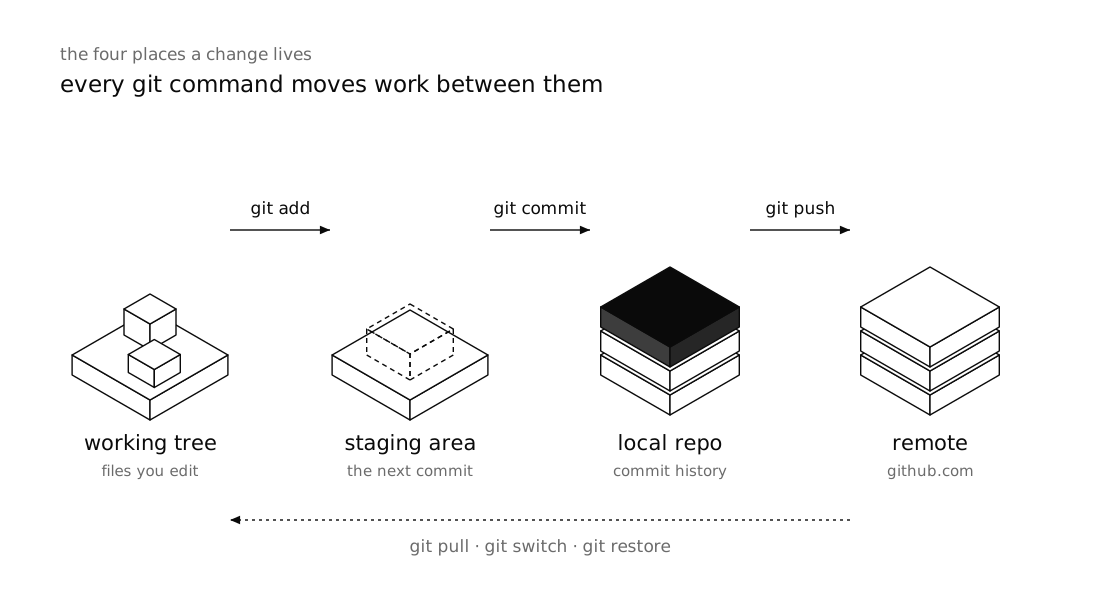
Understand Git's three areas
Most Git confusion comes from not knowing these three areas:
- Working tree: the files you see and edit.
- Staging area (index): the changes you've selected for the next commit.
- Repository: the commit history, stored in the
.gitdirectory.
The cycle is always the same: edit a file, stage it with add, and record it in history with commit.
Everyday Git commands
Starting a project: init or clone
For a brand-new project, create a repository inside its folder:
mkdir my-project && cd my-project
git init
If the repository already exists somewhere like GitHub, clone it. This brings down the full history and sets up a remote named origin automatically:
git clone git@github.com:user/my-project.gitstatus: always check where you are first
git statusThis tells you which branch you're on, which files have changed, which are staged and which Git isn't tracking at all. Make a habit of running it before every add and commit.
add and commit: recording a step
git add index.php          # a single file
git add src/               # a directory
git add -p                 # hunk by hunk, prompting for each change
git commit -m "Validate email before saving the contact form"
git add -p is underused but extremely handy: when you've made two unrelated changes in one file, you can commit each one separately.
Write commit messages for whoever reads them a year from now: what changed and why. "fix" and "update" tell them nothing.
log and diff: viewing history and changes
git log --oneline            # one commit per line
git log --oneline --graph    # with a branch graph
git diff                     # changes not yet staged
git diff --staged            # staged changes that will go into the next commit
git diff main..feature       # difference between two branches
Run git diff --staged before every commit. It regularly stops a stray dd() or a test password from landing in the repository.
branch and switch: parallel work without the mess
A branch is a separate line of work. Create one for each feature or bug fix so main always stays healthy:
git branch                    # list branches
git switch -c feature/login   # create a new branch and switch to it
git switch main               # go back to main
git branch -d feature/login   # delete a merged branch
In recent Git versions, switch replaces the branch-related uses of checkout and is easier to read. checkout still works, but it does several unrelated things, which is exactly what makes it confusing.
merge: combining branches
When the work on a branch is done, switch back to main and merge it:
git switch main
git merge feature/login
If both branches changed the same line of the same file, you get a conflict. Git marks the file with <<<<<<<, ======= and >>>>>>>; fix it by hand, remove the markers, then:
git add path/to/file
git commit
remote, push and pull: working with GitHub
git remote -v                                         # list remotes
git remote add origin git@github.com:user/repo.git   # add a remote to a repo created with init
git push -u origin main                               # first push, linking the branch to origin
git push                                              # subsequent pushes
git pull                                              # fetch and merge other people's changes
git pull is really two operations: fetch (download the changes) followed by a merge. If you want to see what arrived first, run git fetch and review it with git log --oneline main..origin/main.
Connecting to GitHub with git@github.com:… URLs requires an SSH key; creating one is covered in SSH keys and connecting to a server.
Undoing changes without losing work
Git can recover from almost any mistake, as long as you use the right command. Read this section carefully.
restore: discard changes to a file
git restore index.php            # revert the file to the last commit (changes are lost)
git restore --staged index.php   # unstage; the changes stay in the file
Be careful: git restore without --staged permanently deletes uncommitted changes, and Git has no way to get them back.
reset --soft vs. reset --hard
Say you committed too early and want to change the message or add a file:
git reset --soft HEAD~1The commit is removed, but all its changes stay staged. This is completely safe.
This one, however, needs care:
git reset --hard HEAD~1--hard removes the commit and also throws away every uncommitted change in the working tree. Two rules:
- Before
reset --hard, rungit statusand make sure there's nothing uncommitted you still need. - Don't reset commits you've already pushed. Your history will diverge from everyone else's, and pushing will require
--force, which wipes out other people's work.
If you lose a commit to a reset, git reflog lists where HEAD has recently been, and you can usually recover it from there.
revert: the safe way to undo pushed commits
revert doesn't erase history; it creates a new commit that exactly cancels out an earlier one:
git log --oneline
git revert a1b2c3d
git push
On a shared branch, this is always the right choice.
stash: shelve unfinished work
You're mid-task and need to jump to another branch quickly:
git stash push -m "half-done login form"
git switch main
# ... urgent work ...
git switch feature/login
git stash pop
git stash list shows everything you've stashed. Don't use stash as long-term storage; if the work will take more than a day, a temporary commit on its own branch is safer.
.gitignore: what should never go into the repository
A .gitignore file at the project root tells Git which files to ignore. A sensible one for a Laravel project:
# Dependencies; rebuilt by composer and npm
/vendor/
/node_modules/

# Secrets and local settings
.env
.env.*
!.env.example

# Build output and temporary files
/public/build/
/storage/*.key
*.log

# Editor and OS files
.idea/
.vscode/
.DS_Store
Two important points:
.gitignoreonly affects files that aren't tracked yet. If.envwas already committed, remove it from the repository withgit rm --cached .env.- If a password or key was ever committed and pushed, removing it in the next commit isn't enough; it's still in the history. Rotate that secret.
Git commands cheat sheet
| Task | Command |
|---|---|
| Create a new repository | git init |
| Clone an existing repository | git clone <url> |
| Check status | git status |
| Stage changes | git add <file> or git add -p |
| Commit | git commit -m "message" |
| Compact history | git log --oneline --graph |
| Unstaged / staged changes | git diff / git diff --staged |
| Create and switch to a branch | git switch -c <name> |
| Switch to an existing branch | git switch <name> |
| Merge a branch into the current one | git merge <name> |
| List / add remotes | git remote -v / git remote add origin <url> |
| Push / pull | git push / git pull |
| Discard changes to a file | git restore <file> |
| Unstage a file | git restore --staged <file> |
| Undo last commit, keep changes | git reset --soft HEAD~1 |
| Undo commit and discard changes (dangerous) | git reset --hard HEAD~1 |
| Undo a pushed commit | git revert <hash> |
| Stash and restore work | git stash push / git stash pop |
| Find a lost commit | git reflog |
Frequently asked questions
What is the difference between Git and GitHub?
Git is a version control tool that runs on your own machine and keeps the history of a project's changes. GitHub is a service that hosts the shared copy of a Git repository online and adds features such as pull requests, code review and CI.
What is the difference between git pull and git fetch?
git fetch only downloads new changes from the remote and leaves your branches untouched. git pull is a fetch followed by a merge into your current branch, so if you want to see what arrived before integrating it, fetch first and decide afterwards.
How do I undo the last commit without losing my changes?
Run git reset --soft HEAD~1: the last commit is removed, but all its changes stay staged so you can commit them again properly. Only do this for commits you haven't pushed yet.
What is the difference between git reset and git revert?
reset moves the branch back and removes commits from it, so it's only suitable for local, unpushed work. revert leaves history intact and adds a new commit that cancels out an earlier one, which makes it the right choice for shared branches and pushed commits.
How do I remove a committed file from Git but keep it on disk?
Run git rm --cached followed by the file name, add the file to .gitignore and commit. If the file contained a password or key and was pushed, it remains in the history, so rotate that secret.
Wrap-up
For everyday Git you need little more than a dozen commands: status, add, commit, log, diff, switch, merge, pull and push. What separates a confident Git user from a beginner is knowing the ways back: restore and reset --soft for local work, revert for anything already pushed, and constant caution with reset --hard. Make small commits with clear messages, create a branch for each piece of work, and put .env in .gitignore from day one.
If you've just got a server and want to deploy your project to it from Git, essential Linux commands for servers is a good next step.